Cube Solver: Scan, Learn, Play
- 4.3
- Rating
- 1.00M
- Installs
- Free
- Price
 Analysis by App-foxy
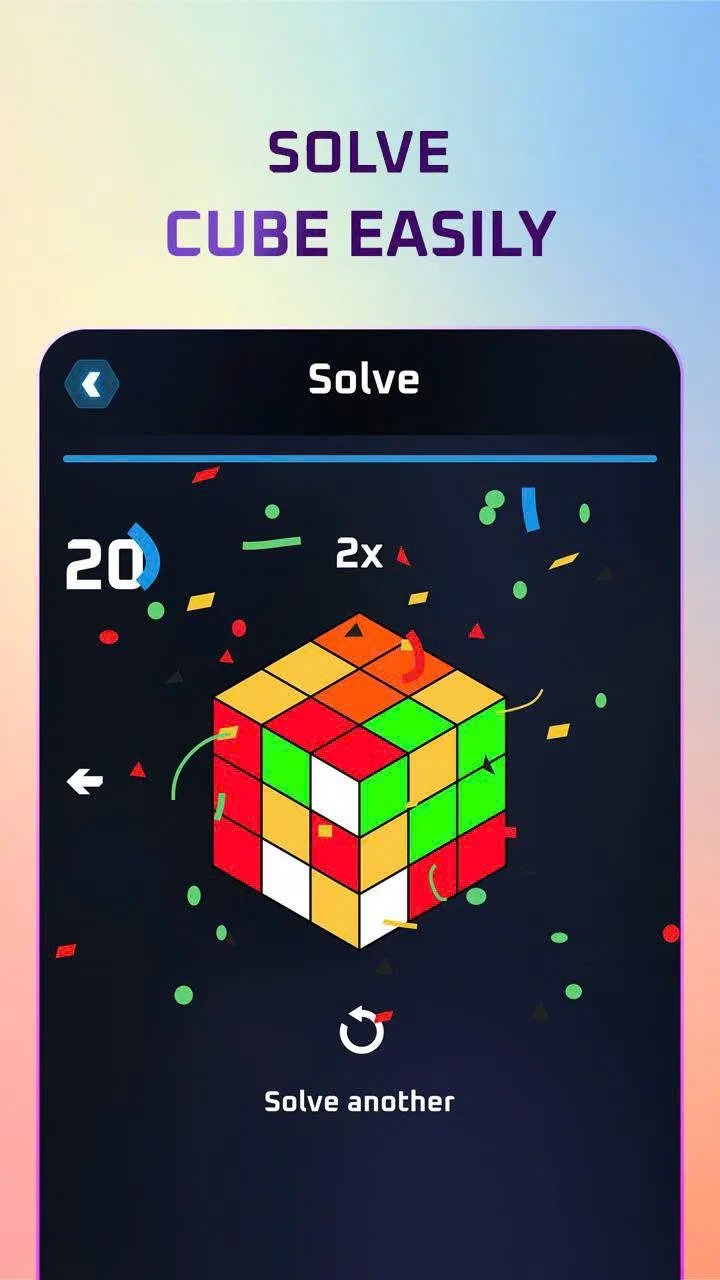
I spent time with Cube Solver: Scan, Learn, Play as a practical education app rather than treating it like a simple toy. Its purpose is clear: help me work through a Rubik’s Cube using either the phone’s camera or manual entry, then guide me through the solution one step at a time. That sounds straightforward, but the quality of the experience depends heavily on how carefully I prepare the cube, how well I follow the visual instructions, and how much patience I have when something goes wrong.
What makes this app interesting is the way it turns a physical puzzle into a guided lesson. Instead of searching for a long algorithm and trying to interpret it on my own, I can describe the cube’s current state and receive a sequence intended for that exact arrangement. I found that especially useful when I had scrambled a cube beyond the point where I could recognize a familiar pattern. The app belongs to the education category, and that is a fair description: it is not merely giving an answer, because the step-by-step format can help me understand how a solution progresses.
It is free to install, with optional in-app purchases ranging from around three to five dollars per item. The app is marked for Teen users, comes from Uthus, and has built a sizeable audience, with over a million installs and an average rating of 4.3 from around 2,000 ratings. Those figures suggest that it has found a real audience, but they do not remove the need to understand its practical limits, particularly when the camera, the phone screen, and network-dependent parts of a mobile experience meet in the same workflow.
You May Also Like

 Blood Strike: 2.5 Anniversary
Blood Strike’s Loadouts Turn Every Drop Into a Tactical Gamble
A close look at Blood Strike’s custom loadouts: how fast access to signature weapons reshapes its battle royale rhythm, rewards preparation, and narrows the gap between fights.

 Pandora - Music & Podcasts
Pandora’s Music Is Easy to Start, but Harder to Recover
Pandora’s strength is its low-effort path from a seed to a station. Its weak spot is how much confidence it asks you to place in connection, setup, and quiet recovery.

 8 Ball Pool
 Is Built on Rivalries, Rematches, and Routine
A close look at the rivalries, rematches, shared routines, and unanswered safety questions that turn a quick pool match into a persistent mobile community.

 Samsung Music
’s Quiet Strength Is Playing What You Already Own
Its reach comes less from spectacle than from dependable access to a personal library. That simplicity is both the app’s strongest retention engine and its ceiling.

 AccuWeather: Weather Radar
AccuWeather Review: A Quick, Clear Forecast for Everyday Decisions
For everyday plans, the best forecast is the one you can understand quickly. AccuWeather makes rain timing, radar, and local conditions easy to act on, with a few trade-offs.

 Hill Climb Racing
Why Hill Climb Racing Still Turns Crashes Into One More Run
A tiny car, a bumpy hill and one more upgrade: Hill Climb Racing keeps resurfacing because its simple chaos makes every near-miss feel personal.
More From Our News Desk



How the solving workflow feels in everyday use
I approach the solving workflow as a small sequence of decisions, not just a scan followed by a string of turns. Choosing a steady place, checking the cube’s orientation, and deciding when manual entry makes more sense can save time later. That practical setup leads naturally to the key question: how well does the app guide each move once the cube’s state is entered?
Starting with the camera or manual setup
The first decision is whether I want to use camera input or enter the cube manually. Camera scanning is naturally the more appealing option because it promises a quicker start. I can hold the cube in front of the phone and let the app interpret the visible faces, rather than tapping every color into a diagram. In a quiet room with decent light and a cube held squarely, that approach feels like the right choice.
It is also the part of the experience where I noticed the greatest amount of friction. A cube has glossy stickers, strong color similarities, shadows between pieces, and small changes in angle that can affect recognition. If the camera misunderstands a face, the resulting solution may be perfectly logical for the wrong cube. That is an important distinction. When a sequence appears not to work, the problem may not be the solving engine; it may be an inaccurate scan at the beginning.
For that reason, I would not rush through the scan just because the app offers camera input. I keep the cube steady, avoid harsh reflections, and check each recognized face before moving on. That small pause is one of the most useful habits I developed with this app. It is faster than blindly following a complete sequence and discovering at the end that one color was entered incorrectly.
Manual input is slower, but it gives me control. I prefer it when the room is dim, when the cube has unusual stickers, or when I am correcting a scan rather than starting from scratch. It also has educational value: entering the colors forces me to look at the cube carefully and understand which faces I am describing. Someone who wants the quickest possible result may find this tedious, but someone learning cube notation may appreciate the extra involvement.
Following instructions without losing orientation
Once the cube state is accepted, the central experience becomes a sequence of moves. The app’s step-by-step approach is much easier to use than a dense block of notation, especially for a beginner who has not yet memorized the meaning of every turn. I can concentrate on one move, perform it, and then compare the cube with the next visual state instead of trying to hold an entire algorithm in my head.
The challenge is maintaining orientation. A move only makes sense if I know which face is considered the front, which side is on top, and whether I have accidentally rotated the whole cube in my hands. I found it helpful to keep the same face toward me throughout a short group of instructions. If I turn the physical cube to get a better grip, I mentally reset its position before continuing. This is not a flaw unique to the app, but the phone cannot prevent a user from changing the cube’s orientation without noticing.
My best results came from treating each instruction as a checkpoint rather than racing through the list. After a few moves, I look at the cube and confirm that its pieces resemble the displayed state. If they do not, I stop immediately. Continuing after a mistake usually makes recovery harder, while catching the problem early often means reversing only the last move or two.
What it teaches and what it does not replace
This is a useful distinction for anyone deciding whether the app is right for them. It can show me how to solve a particular scramble, but that is not the same as teaching me to solve every scramble from memory. Repeated use can help me notice patterns and become familiar with move notation, yet the app remains most valuable as an active guide and reference.
If my goal is simply to restore a cube after a difficult scramble, the guided solver is a strong fit. If my goal is speedcubing, I would want to supplement it with deliberate practice, timed solves, and more focused study of algorithms. The app can reduce the frustration of being stuck, but it does not automatically build fast finger technique or deep recognition skills.
Where connectivity becomes part of the experience
The connectivity question matters because this is a phone-based workflow that may involve camera processing, instructional content, or other app functions that depend on how the application communicates with its services. I avoid assuming that every part works without a connection. Instead, I treat reliable network access as sensible preparation whenever I am about to scan a cube or begin a guided solve, particularly if I am away from home.
That changes how I use it in real situations. At a desk with a stable connection, I can calmly scan, correct an error, and restart if needed. On a train, in a school corridor, or in a crowded café, the experience may be less predictable because the phone is being used in a moving, distracting environment at the same time that connectivity may fluctuate. I would prepare the cube and find a stable place before starting rather than expecting a quick scan while walking.
I also prefer not to begin a solve when my battery is nearly empty or when I have limited access to data. A solver is not an emergency utility; it is a guided activity. Taking a moment to confirm that the app opens normally and that the relevant screen responds before scrambling the cube can save an otherwise avoidable interruption.
Using it in different mobile contexts
At home, the app is easiest to appreciate. I can place the cube on a table, use consistent lighting, and keep the phone at a comfortable distance. The larger the screen, the easier it is to compare an illustration with the real cube, although I still found that careful hand positioning mattered more than simply having a large display.
In a classroom or study group, the manual mode may be more practical than scanning. Several people may be handling cubes, the lighting may be uneven, and passing a phone around can make camera alignment awkward. Manual entry also gives me a chance to explain what I am doing, turning the app into a demonstration tool rather than a private shortcut.
For travel, I would use it with more preparation. A cube can be solved in a small space, but the phone and cube compete for attention when I am standing or moving. A sudden stop, a bumped hand, or a notification can cause me to lose track of the current step. I recommend taking a photo or mental note of the cube’s orientation before following a long sequence, not because the app promises a recovery system, but because the user needs a reference if the process is interrupted.
Parents and younger learners should also consider the Teen content rating when deciding whether it suits a particular child. The puzzle itself is harmless in the ordinary sense, but the rating is part of the app’s published profile and should be checked alongside the family’s own expectations about camera-based mobile use and optional purchases.
What happens when a solve goes wrong
The most important recovery skill is recognizing the difference between a bad instruction and a bad starting state. If I entered one sticker incorrectly, the app may generate a sequence that cannot match the physical cube. If I turn the whole cube halfway through, the instructions may still be correct while my interpretation is no longer aligned. If the cube was physically reassembled incorrectly, even accurate input may lead to a state that cannot be solved through ordinary moves.
When something looks wrong, I do not keep turning randomly. I first return to the last point where the cube clearly matched the expected arrangement. If I can identify the mistaken move, I undo it carefully. If I cannot, I restart the input process and inspect the cube again. This takes longer than improvising, but it prevents a small error from becoming a confusing tangle.
The camera workflow has a particularly useful recovery habit: review the recognized colors before trusting the sequence. A single misread corner can be difficult to notice later, while it is much easier to spot during the initial check. Manual correction is therefore not just a backup method; it is a practical way to repair imperfect scanning.
I also recommend keeping the physical cube’s orientation consistent during recovery. Put one chosen face toward you, identify the top, and make changes slowly. If I lose track of those reference points, restarting is usually more efficient than trying to reconstruct every turn from memory.
Being careful with data and network use
Camera-based solving naturally makes data awareness relevant. I use the camera only when I am ready to scan, rather than leaving it active while arranging the room or talking through the puzzle. That is a simple privacy-conscious habit, and it also keeps the workflow focused. I do not treat a camera feature as something that should be running unnecessarily in the background.
When I have a limited mobile plan, I prefer to use the app on a trusted Wi-Fi connection for the initial setup and any content that may require communication with the app’s services. I do not claim that every action consumes substantial data, but planning around Wi-Fi avoids surprises and makes connectivity less distracting. It also gives me a more stable environment for checking a scan and repeating a step.
Network-conscious use does not mean avoiding the app. It means choosing the right moment. I can prepare the cube, position the phone, and decide whether manual entry is more sensible before starting. If the connection is unreliable, manual entry may still be useful, but I would not assume that the entire solving journey will behave identically without network access. The safest expectation is that connectivity can shape the experience, so I plan accordingly.
The optional purchases deserve the same practical attention. The app is free, but individual in-app items cost around three to five dollars. I would test the core workflow first and decide whether the extra purchase is genuinely useful for my needs. Someone who only wants occasional help with a scramble may not need to spend anything, while a frequent learner may find an optional item worthwhile if it supports the way they use the app.
Who should use it, and who should choose another route
I recommend this solver to beginners who want immediate guidance without starting with a textbook full of notation. It is also a good choice for casual cube owners who enjoy solving but do not want to memorize a complete method. The camera option can reduce setup work, while manual entry gives a dependable alternative when scanning is inconvenient.
It suits patient learners better than impatient users. The app can guide me, but I still need to hold the cube correctly, check the scan, follow the orientation, and recover thoughtfully from mistakes. Anyone expecting a single tap to solve a physically misread cube may become frustrated.
I would choose a different tool if my main aim were competitive speed. A dedicated training routine, algorithm reference, or timer-focused app would be more appropriate for improving solve times and finger tricks. I would also look elsewhere if I wanted a broad collection of puzzles, social competition, or a fully structured course. This app’s strength is the direct path from a scrambled cube to an understandable sequence, not an expansive training ecosystem.
For a child below the published Teen rating, I would check suitability first rather than assuming that the simple puzzle makes the rating irrelevant. For a user with very limited data or an unreliable connection, I would test the exact workflow in advance and avoid relying on it during a time-sensitive situation.
My connectivity verdict
Connectivity does not define the whole experience, but it influences when and where I feel comfortable using it. At home or on dependable Wi-Fi, the camera-and-guidance workflow feels convenient and focused. In transit or on an unstable mobile connection, I become more cautious: I check the cube carefully, keep my orientation fixed, and avoid starting a solve that I cannot easily restart.
My overall impression is positive because the app addresses a very specific frustration well: being stuck with a scrambled cube and not knowing what to do next. The combination of camera input, manual correction, and guided moves gives me more than a static algorithm list, while still leaving enough responsibility with me to learn from the process.
The strongest practical lesson is to treat scanning, connectivity, and cube orientation as one connected workflow. A clean scan is only useful if the app can complete the relevant interaction, and a correct sequence is only useful if I keep the physical cube aligned with the instructions. Once I adopted that mindset, the experience became much more reliable.
Released on January 28, 2025, and currently at version 0.1.9, it feels like a focused tool that is still best judged by its core purpose rather than by promises of replacing every other learning method. I would recommend it to anyone who wants a friendly route through a difficult scramble, provided they are willing to verify the input and follow the steps carefully. For casual solving and guided learning, it is a practical companion; for advanced speed training or completely frictionless use in any location, a more specialized alternative may be the better choice.
FAQs for Cube Solver: Scan, Learn, Play
01What is Cube Solver: Scan, Learn, Play?
Cube Solver: Scan, Learn, Play is an innovative mobile application designed to help users solve Rubik's Cubes using their device's camera. The app not only provides step-by-step instructions for solving the puzzle but also offers educational insights and interactive tutorials to enhance your cube-solving skills.
02How does the scanning feature work in Cube Solver?
The scanning feature allows users to capture the current state of their Rubik's Cube using the device's camera. Once scanned, the app processes the image and generates a series of moves to solve the cube. It’s important to have good lighting and a clear view of the cube for accurate scanning.
03Is Cube Solver suitable for beginners?
Yes, Cube Solver is designed for both beginners and advanced users. It includes detailed tutorials and a learning mode that simplifies the solving process. Beginners can follow along with easy-to-understand instructions, while more experienced users can explore advanced techniques and speed-solving strategies.
04Does Cube Solver require an internet connection?
Cube Solver primarily functions offline, allowing users to solve cubes without an internet connection. However, some features, such as updates and additional content downloads, may require internet access. This makes it convenient for use anywhere, whether at home or on the go.
05Are there any in-app purchases or ads in Cube Solver?
Cube Solver offers a free version with ads, which supports the development of the app. There is also a premium version available for purchase that removes ads and may include additional features or content. Users can choose the version that best suits their preferences and needs.
Pros
- User-friendly interface for beginners.
- Fast scanning with high accuracy.
- Offers step-by-step solving guides.
- Includes interactive tutorials.
- Supports multiple cube types.
Cons
- Requires a consistent internet connection.
- Ads can be frequent and intrusive.
- Limited features in the free version.
- Occasional scanning glitches.
- No offline mode available.

Cube Solver: Scan, Learn, Play
Gallery